
If you still have the old computer
-
Click the ChillDesk icon in the menu bar (Mac) or the system tray (Windows) and choose Settings….
-
Scroll to the License section.
-
Click Remove this computer. The message says: Press “Remove this computer” again to confirm. ChillDesk stops here until you activate it again.
-
Click Remove this computer a second time. When the message This computer was removed from the license. appears, the slot is free.
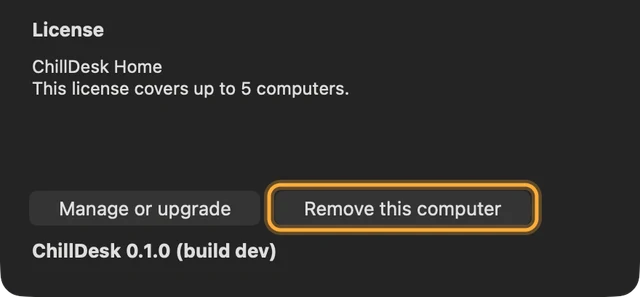
Remove this computer, in Settings under License.
ChillDesk tells the license server first and forgets the key on this computer only after the slot is really free. If there is no connection, nothing changes and it says so.
If the old computer is gone
-
Open My license.
-
Type the email you bought with and click Email me a link.
-
Open the email and click the link. It works for an hour.
-
Find the old computer in the list and click Remove next to it. The slot frees at once.
Then, on the new computer
-
Paste the same key and click Activate. See How to activate ChillDesk.
Solo or Home
Solo covers one computer, so remove the old one first. Home covers five, so you only need to remove a computer when all five slots are in use. Solo or Home explains both.
If it says the license moved too often
A license that moves between many computers in a few days is paused for a while, so one key is not passed around. The message reads: This license moved between too many computers lately. Try again in a few days, or write to [email protected].