
Find your key
After you pay, an email with your license key arrives within a minute, at the address you used at checkout. Check your spam folder if you cannot see it. The key looks like CD-XXXXX-XXXXX-XXXXX-XXXXX. If it never arrives, see I lost my license key.
Activate on a Mac
-
Open ChillDesk from Applications. If it is not installed yet, follow How to install ChillDesk on a Mac.
-
The window ChillDesk: Activate opens. Its heading says Activate ChillDesk.
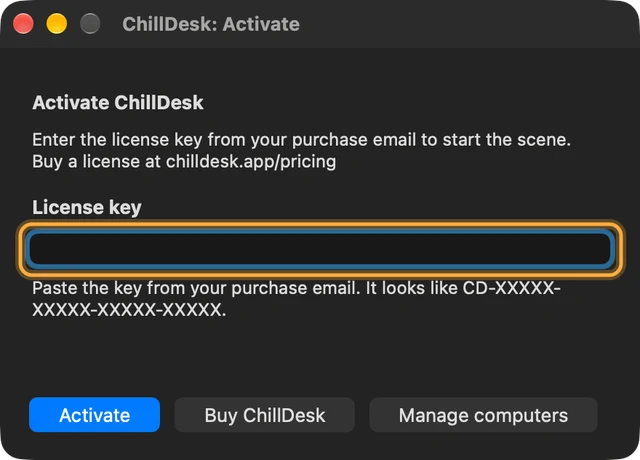
The Activate window. The key goes in the License key box. -
Copy the key from your email. Select the whole key, including
CD-, and copy it. -
Click the License key box and paste with Cmd+V.
-
Click Activate. The message Checking your key… appears for a moment.
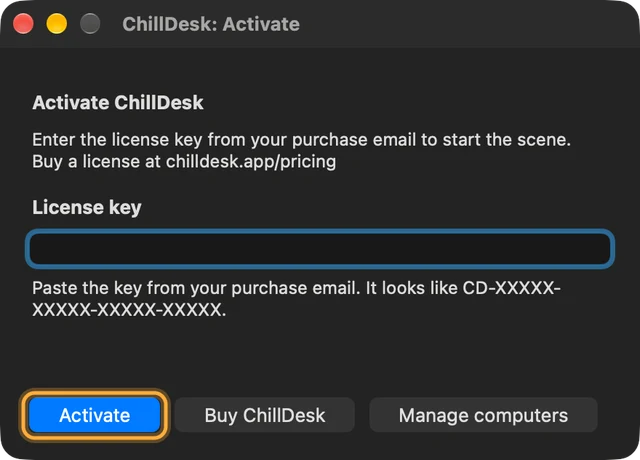
Click Activate. -
Look behind your icons. The scene has started. Click the ChillDesk icon in the menu bar: the top line of the menu now reads Licensed: ChillDesk Solo or Licensed: ChillDesk Home.
-
To check later, choose Settings… and scroll to License. It names your plan and how many computers the license covers.
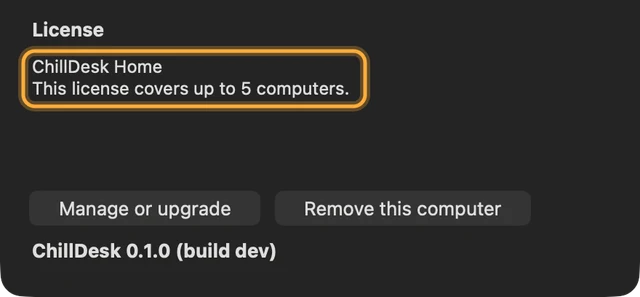
The License section after activation.
Activate on Windows
-
Install ChillDesk with How to install ChillDesk on Windows.
-
The window ChillDesk: Activate opens by itself the first time, in the middle of your screen, and gets its own button on the taskbar. If you closed it, click the ChillDesk icon in the system tray (it may sit under the ^ arrow) and choose Activate….
-
Copy the key from your email. Select the whole key, including
CD-, and copy it. -
Click the License key box and paste with Ctrl+V.
-
Click Activate, or press Enter. The message Checking your key… appears for a moment, then Activated: ChillDesk Solo. Thank you! (or Home, for a Home key).
-
Look behind your icons. The scene has started. Click the tray icon again: the top line of the menu now reads Licensed: ChillDesk Solo or Licensed: ChillDesk Home.
-
To check later, choose Settings… from the tray menu and scroll to License. It names your plan and how many computers the license covers.
The window follows the Windows text size and display scaling, and you can move through it with Tab. Esc closes it.
What the messages mean
| Message | What to do |
|---|---|
| That does not look like a ChillDesk key. A key looks like CD-XXXXX-XXXXX-XXXXX-XXXXX. | Copy the key again from the email. Look for a missing character. |
| This key was not found. Check it for typos, or copy it again from your purchase email. | Same as above. |
| This license is already in use on all N computers. Remove one at chilldesk.app/manage, then press Activate again. | Free a slot: move your license. |
| This license was refunded or switched off, so it cannot be activated. | A refund ends a license. Write to support if you think this is a mistake. |
| This license moved between too many computers lately. Try again in a few days, or write to [email protected]. | Wait a few days or write to us. |
| Your computer’s clock looks wrong. Fix the date and time in your system settings, then try again. | Set the date and time to automatic. |
| Too many attempts from your network. Wait a few minutes and try again. | Wait, then press Activate again. |
| ChillDesk could not reach the license server. Check your internet connection and try again. | Check your connection. |
After activation
ChillDesk checks your license in the background about every 7 days. Offline, it keeps running for up to 30 days after the last successful check. After 30 days the scene pauses and the menu says License check failed. Connect to the internet and it resumes.