
Step 1: free this computer’s license slot
Skip this if you do not need the slot again.
-
Click the ChillDesk menu-bar icon (Mac) or tray icon (Windows) and choose Settings….
-
Scroll to License.
-
Click Remove this computer. The message says: Press “Remove this computer” again to confirm.
-
Click Remove this computer a second time. The message This computer was removed from the license. appears.
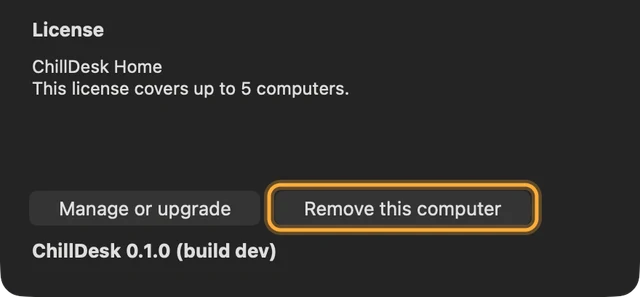
Remove this computer, in Settings under License.
Uninstall on a Mac
-
In Settings…, switch off Start at login. This removes the login item so macOS does not look for the app later.
-
Click the menu-bar icon and choose Quit ChillDesk.
-
Open Applications, drag ChillDesk to the Trash and empty it.
-
Optional: delete the folder
~/Library/Application Support/ChillDeskto remove your settings. In Finder choose Go > Go to Folder… and paste the path.
If you deleted the app before step 1, remove the file ~/Library/LaunchAgents/app.chilldesk.desktop.plist the same way.
Uninstall on Windows
-
Click the ChillDesk tray icon and choose Quit ChillDesk.
-
Open the Start menu, open the ChillDesk folder and click Uninstall ChillDesk. Or open Settings > Apps > Installed apps, find ChillDesk and choose Uninstall.
-
Confirm. The uninstaller removes the program and the start-with-Windows entry that ChillDesk added.
-
Optional: delete
%APPDATA%\ChillDeskto remove your settings. -
If you want the slot free, open My license and remove this computer there.
Coming back later
Your key still works. Install ChillDesk again and activate it.