
How it works
About every 6 hours ChillDesk asks the update server whether there is a newer version. If there is, it downloads the update, checks its signature and installs it. Updates are free with your license.
Check by hand
-
Click the ChillDesk icon in the menu bar (Mac) or the system tray (Windows).
-
Choose Check for updates.
-
Read the menu line. It says Checking for updates…, then ChillDesk is up to date or Downloading update….
-
If it says Update failed, try again, check your internet connection and choose Check for updates again.
Turn automatic installs off
-
Click the menu-bar icon (Mac) or the tray icon (Windows) and choose Settings….
-
Find the General section.
-
Switch off Install updates automatically.
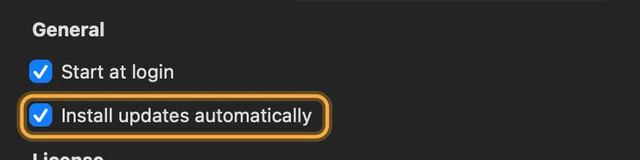
Untick Install updates automatically. -
Close the window. From now on, when a new version exists the menu shows Install update and its version number. Choose it when you are ready.
The version you run is printed at the bottom of the Settings window.
Why we update
Updates fix bugs and add things to the scene. Keeping ChillDesk current also keeps it compatible with new macOS and Windows versions.